Page 1 of 1
[BETA] Right-Click FileBot (FileBot Context Menu for Windows 11 available for testing)
Posted: 10 Apr 2026, 13:00
by rednoah
★★ EARLY PROTOTYPE FOR TESTING AND FEEDBACK ★★
Right-Click FileBot provides a custom context menu for Windows 11 that is easy to configure and customise for your specific needs.

Microsoft Store:
https://apps.microsoft.com/detail/9nnh21t1xbch
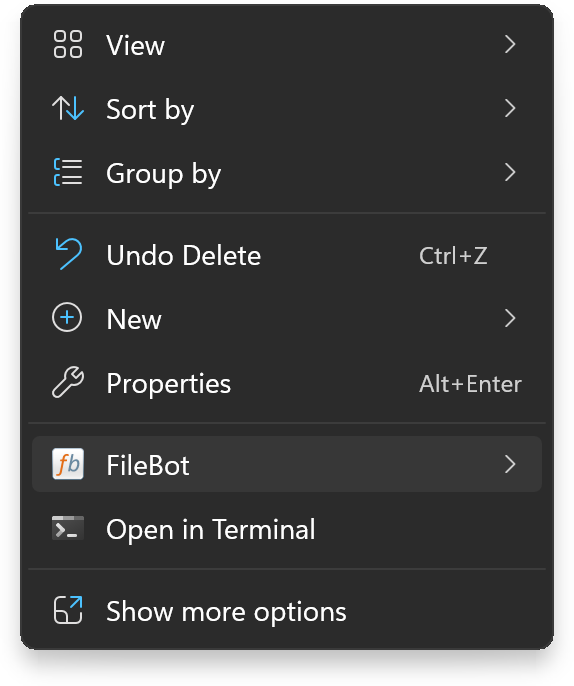
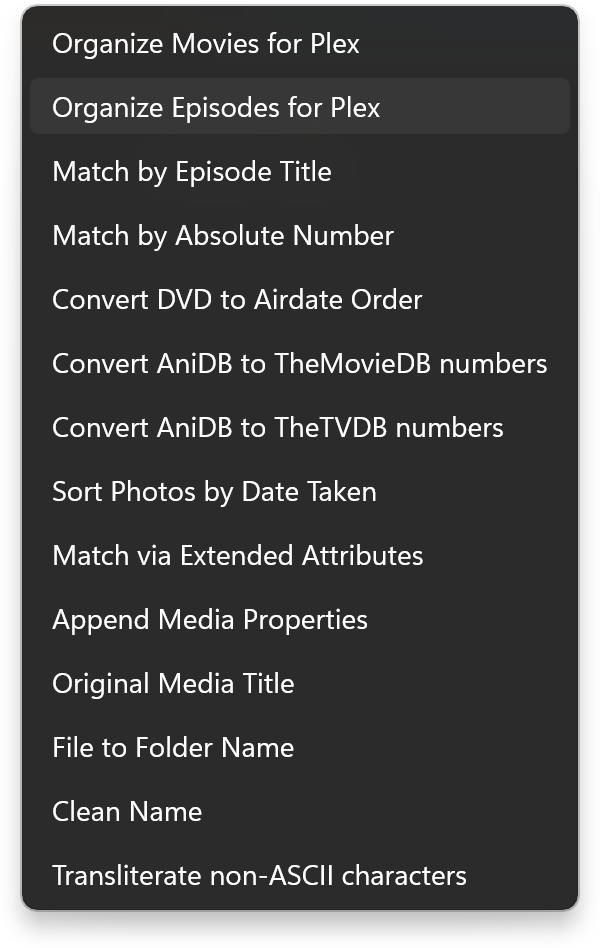
- This early release only allows you to import custom Presets configured in the FileBot application and then making them available via the Windows 11 context menu.
- UI for for complete customization of the FileBot context menu, i.e. UI for creating custom filebot commands, custom Groovy or PowerShell scripts, and any custom command-line tool in general.
- Feedback of any kind, especially feature requests, are most welcome.
- Right-Click FileBot depends on the filebot command-line tool. The filebot command must be in the %PATH%.
Re: [BETA] Right-Click FileBot (FileBot Context Menu for Windows 11 available for testing)
Posted: 13 Jun 2026, 01:28
by jdsmith
The desktop version provides movie name and year for plex movie presets.
When right clicking it adds the IMDB ID tag.
How do I remove that tag.
Re: [BETA] Right-Click FileBot (FileBot Context Menu for Windows 11 available for testing)
Posted: 13 Jun 2026, 03:34
by rednoah
The context menu uses your
Presets. You can create / modify your
Presets into the FileBot Desktop application to suit your needs. Specifically, you'll want to use a custom format and
not {plex.id} which is the default format and adds
{tmdb-12345} markers to the movie folder name.
After that you'll have to open Right-Click FileBot and import the your new
Presets again to update the context menu.
Re: [BETA] Right-Click FileBot (FileBot Context Menu for Windows 11 available for testing)
Posted: 19 Jul 2026, 08:21
by hlveheart
There’s no chance of you backporting this to be compatible with Windows 10 is there? :3
Re: [BETA] Right-Click FileBot (FileBot Context Menu for Windows 11 available for testing)
Posted: 19 Jul 2026, 09:54
by rednoah
We use the
IExplorerCommand interface so that should work on both Windows 10 and Windows 11. That said, we only test on Windows 11, so if it doesn't work on Windows 10 for some unknown reason then there's not much we can do about that. If you're on Windows 10 and have some Windows development experience, then maybe you could debug the issue and tell us what's making it not work on Windows 10.
CORRECTION

Apparently Windows 10 simply does not support the relevant
AppxManifest.xml sections and ignores them, so it's not registering the context menu with File Explorer. Looks like there's no chance of a Windows 10 port as that would require a traditional installer
(not a Windows Store app; maybe might require a EV code signing certificate too) that installs and registers the context menu extension.
UPDATE

We could probably add an option to generate
*.reg files that could then be used to
configure a classic context menu. You can already do that if you write the
*.reg files yourself:

Re: [BETA] Right-Click FileBot (FileBot Context Menu for Windows 11 available for testing)
Posted: 19 Jul 2026, 23:31
by hlveheart
I have a makeshift version of this on Windows 10, but I had to manually create it via the registry and have to do it for each individual preset.

love this innovation though. Will love it even more when I finally upgrade to 11.
Thanks for all the hard work you guys do.
Re: [BETA] Right-Click FileBot (FileBot Context Menu for Windows 11 available for testing)
Posted: 10 Aug 2026, 03:18
by 1AnimeFinder
can't get it to work it shows my Presets i click on it then nothing
Re: [BETA] Right-Click FileBot (FileBot Context Menu for Windows 11 available for testing)
Posted: 10 Aug 2026, 03:27
by rednoah
1AnimeFinder wrote: 10 Aug 2026, 03:18
can't get it to work it shows my Presets i click on it then nothing

What does the log say?
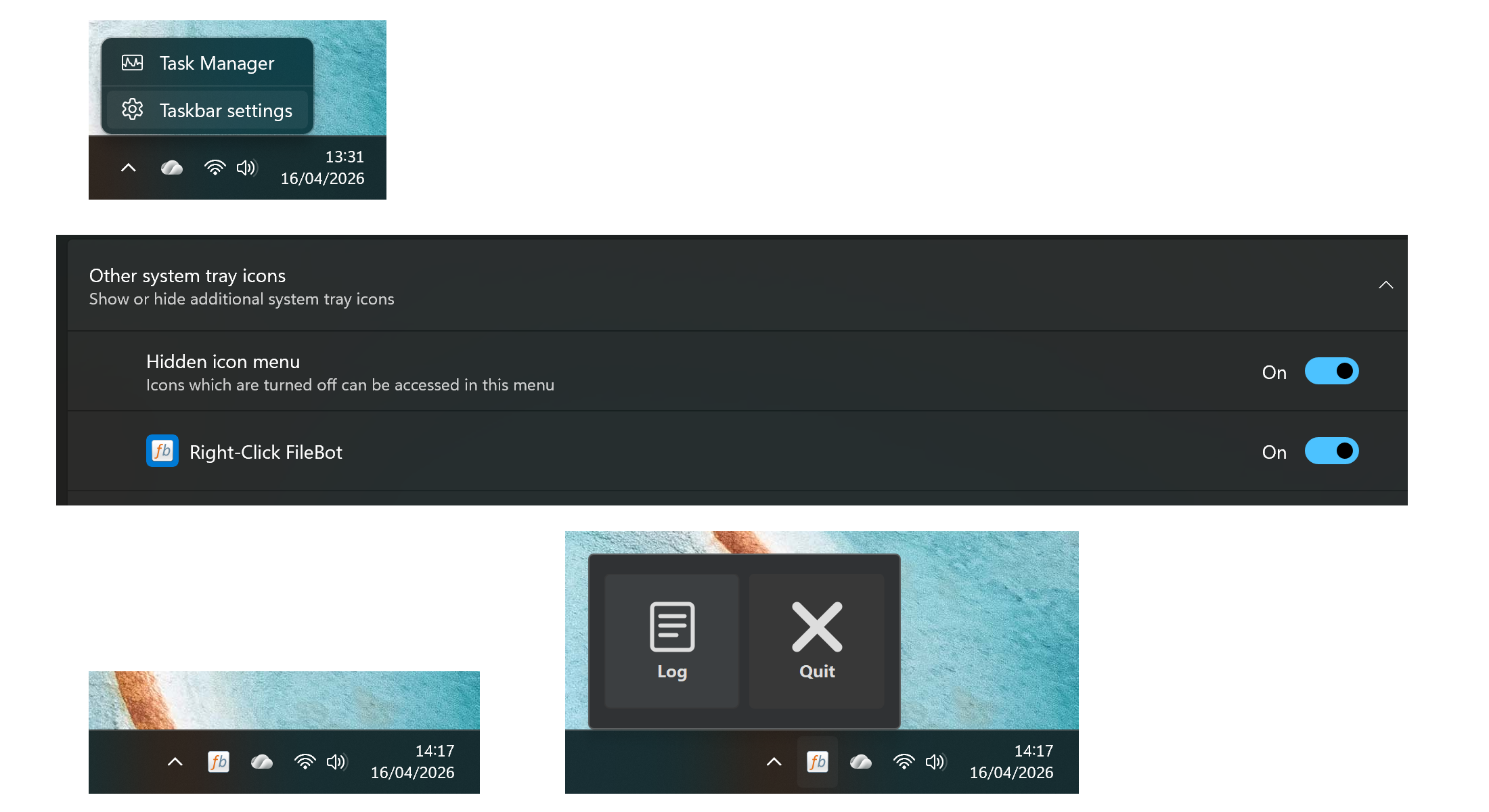
Note that the task runs in the background. You will see a tray icon while it's running. Windows will hide tray icons by default in the
"more" section but you can configure the tray icon to always appear in the task bar in the Windows task bar settings.
Re: [BETA] Right-Click FileBot (FileBot Context Menu for Windows 11 available for testing)
Posted: 18 Aug 2026, 21:54
by FTWOblivion
do i need to have the microsoft store version or is the arm64 installed from your website compatible. also i got the notification on my filebot when i launched it today but hit ignore and cant get it to come back, how do i enable this? (Windows 10 BTW)
Re: [BETA] Right-Click FileBot (FileBot Context Menu for Windows 11 available for testing)
Posted: 19 Aug 2026, 04:52
by rednoah
Right-Click FileBot is a standalone application that you can install from the
Microsoft Store if needed. It'll use the
filebot command-line to run
filebot commands. That means it'll work with any version of
FileBot that you have installed one way or another.
Right-Click FileBot currently
requires Windows 11 and
does not work on Windows 10. That said, you can always
configure a classic context menu via
*.reg files if you're on
Windows 10.