
Very good utility. My general use case is:
I have a beefy Windows 11 PC for processing, connected to a local 100tb Truenas server for storage. Plex is running both on Truenas and the PC, individually pointing at the same Plex library X:\Media\Movies, X:\Media\TV Shows, etc....
The PC has access to all truenas storage thru various drive letters. I'm trying to consolidate and standardize. I don't need 15 copies of the same movie. Some duplicates, some may be in virtually any format in any place. The same movie may be in .MKV, MP4, .ISO, VIDEO_TS. .BDMV, etc. I don't want samples, .NFO files, .JPG files, and other things that may be in the movie directory. Although I do want to the "theatrical release" and "Extended Edition" if I have both.
=============================
Some issues & Suggestions:
1) Installation went fine. Seems to work just fine thru Windows explorer. However, I also use "Everything" from Voidtools, Wiztree, and Treesize for file management. The right-click menu doesn't show up on those utilities.
2) If I run it on 20 files, there is no user feedback that processing is happening. At first, I couldn't tell if it was doing anything or triggered. I could only tell when it had finished. Maybe give the user some indication that processing has started.
3) When finished, there are 20 windows explorer windows left open. And if a file was not copied/renamed due to a duplicate or "file in use" error, it's hard to understand what happened.
4) A right-click sub-option (from anywhere) to say "add current file to Filebot Interactive Window" would be helpful. Especially when processing lots of files. Currently, when dragging and dropping to Filebot from Wiztree for example, it clears the existing "pending" window with the new files in the drag and drop. I imagine that can be changed in the main program somehow, but I haven't had the chance to look through the options to fix it.
5) The interactive utility removes empty directories when complete, I like that. I don't think the right-click option does.
=========================
Overall, good so far!
Right-Click FileBot Testing & Support

Re: Right-Click Chatbot Testing & Support
That's interesting, but support for 3rd party tools is unfortunately not planned, unless these 3rd party tools can somehow query IExplorerCommand extensions in the same way Windows 11 File Explorer does. If these tools indeed somehow manage to import context menu items from the Windows 10 context menu, then my best guess is that these tools simply check the Windows Registry. The old context menu did allow one to configure context menu items via a set of Windows Registry keys. That's actually very easy, but also thoroughly ignored by the new Windows 11 File Explorer context menu implementation. You can try [Windows] Explorer Context Menu Integration for Scripts and see if it works. If there's 3rd party tools that pick up registry keys like that, then maybe we could add support for exporting the commands into the registry like that for other tools to pick up.mikebruns99 wrote: 15 Apr 2026, 14:21 1) Installation went fine. Seems to work just fine thru Windows explorer. However, I also use "Everything" from Voidtools, Wiztree, and Treesize for file management. The right-click menu doesn't show up on those utilities.
Each background process will run as a tray icon. Windows will typically hide tray icons in the expanded section, so you'll want to go into the taskbar settings and set it to always show.mikebruns99 wrote: 15 Apr 2026, 14:21 2) If I run it on 20 files, there is no user feedback that processing is happening. At first, I couldn't tell if it was doing anything or triggered. I could only tell when it had finished. Maybe give the user some indication that processing has started.
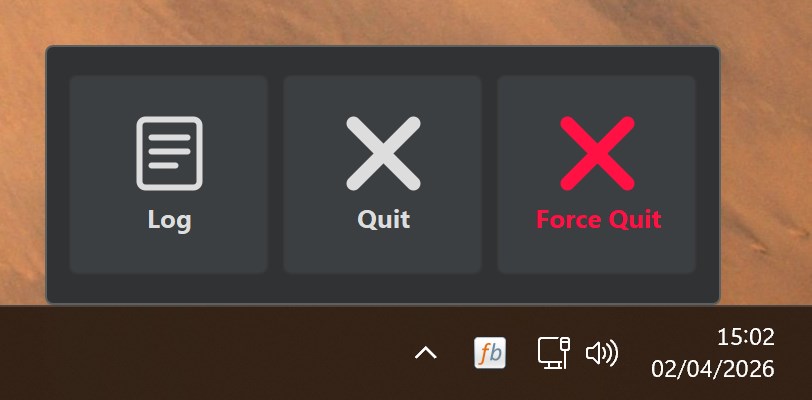
Future versions will allow you customise all the filebot options (i.e. what to do if something does not work; what to do after file are processed; etc) and also allow to show the console log on error / on success / etc.mikebruns99 wrote: 15 Apr 2026, 14:21 3) When finished, there are 20 windows explorer windows left open. And if a file was not copied/renamed due to a duplicate or "file in use" error, it's hard to understand what happened.
That would be nice, but might be tricky since we can't easily do IPC. That said, opening a new FileBot window with selected files loaded in would be easy.mikebruns99 wrote: 15 Apr 2026, 14:21 4) A right-click sub-option (from anywhere) to say "add current file to Filebot Interactive Window" would be helpful. Especially when processing lots of files.
When you drag-n-drop files you can choose between Copy-Drop or Move-Drop or Link-Drop. If you use Move-Drop, then FileBot will replace the loaded files. If you use Copy-Drop then FileBot will add the files to the list. You choose between Move-Drop / Copy-Drop by holding / not holding the CTRL key when you release the mouse button to drop the files. The mouse cursor changes accordingly. A + sign on the cursor indicates a Copy-Drop.mikebruns99 wrote: 15 Apr 2026, 14:21 Currently, when dragging and dropping to Filebot from Wiztree for example, it clears the existing "pending" window with the new files in the drag and drop. I imagine that can be changed in the main program somehow, but I haven't had the chance to look through the options to fix it.
The current minimal example simply adds --apply reveal to each filebot command. Adding --apply prune would take care of left-behind empty folders. All of these options will be configurable in the future once we have a UI for adding / editing / removing tasks.mikebruns99 wrote: 15 Apr 2026, 14:21 5) The interactive utility removes empty directories when complete, I like that. I don't think the right-click option does.
Thank you for the early feedback. Now that it's in the Store, and generally working, we can get started with building an actual UI for the context menu editor. Just importing the Presets was just a convenient way to get something that is somewhat useful right away.
-
mikebruns99
- Posts: 2
- Joined: 15 Apr 2026, 13:38
Re: Right-Click FileBot Testing & Support
Cool! Thanks for the feedback!
I.E. if the file is "Star Trek - Deep Space 9 - S01E01.mkv" apply the TV filter. If it's "Star Trek II: The Wrath of Khan (1982)", apply the Movie Filter. When I process multiple files, today I do 2 separate passes. First I process the movies (or move them to a Movie directory), then I process the TV Shows (in a separate TV Directory).
Here's an imgur link showing my right-click menu on the same file, in Wiztree, Everything, and File Explorer. https://imgur.com/a/filebot-WVcTuoWThat's interesting, but support for 3rd party tools is unfortunately not planned, unless these 3rd party tools can somehow query IExplorerCommand extensions in the same way Windows 11 File Explorer does. If these tools indeed somehow manage to import context menu items from the Windows 10 context menu, then my best guess is that these tools simply check the Windows Registry. The old context menu did allow one to configure context menu items via a set of Windows Registry keys. That's actually very easy, but also thoroughly ignored by the new Windows 11 File Explorer context menu implementation. You can try [Windows] Explorer Context Menu Integration for Scripts and see if it works. If there's 3rd party tools that pick up registry keys like that, then maybe we could add support for exporting the commands into the registry like that for other tools to pick up.
That would be ideal. For my use-case, I love that Filebot does 98% of the heavy-lifting, but I like to do a final verification and do an occasional override. Although I understand that others want a fully automated system with no interaction whatsoever.Future versions will allow you customise all the filebot options (i.e. what to do if something does not work; what to do after file are processed; etc) and also allow to show the console log on error / on success / etc.
Thanks! I knew it would be something simple like this.When you drag-n-drop files you can choose between Copy-Drop or Move-Drop or Link-Drop. If you use Move-Drop, then FileBot will replace the loaded files. If you use Copy-Drop then FileBot will add the files to the list. You choose between Move-Drop / Copy-Drop by holding / not holding the CTRL key when you release the mouse button to drop the files. The mouse cursor changes accordingly. A + sign on the cursor indicates a Copy-Drop.
Thanks! One nice thing to add (which may existing already functionality and I'm missing it), would be to add a feature that will automatically detect if a file is a Movie or a TV show, and apply the appropriate Preset automatically.Thank you for the early feedback. Now that it's in the Store, and generally working, we can get started with building an actual UI for the context menu editor. Just importing the Presets was just a convenient way to get something that is somewhat useful right away.
I.E. if the file is "Star Trek - Deep Space 9 - S01E01.mkv" apply the TV filter. If it's "Star Trek II: The Wrath of Khan (1982)", apply the Movie Filter. When I process multiple files, today I do 2 separate passes. First I process the movies (or move them to a Movie directory), then I process the TV Shows (in a separate TV Directory).
Re: Right-Click FileBot Testing & Support
 I see. You've disabled the Windows 11 context menu and are using the classic context menu instead. In that case the old [Windows] Explorer Context Menu Integration for Scripts reg files may also work well for you. That approach is possible since 2013 actually. This will likely work better for your use case, and especially 3rd party tools. Processing mixed content / movies / TV episodes / etc is already possible on the command-line so exposing these options in the Right-Click FileBot menu editor is of course planned. Having some sort of final confirmation UI is something for the roadmap. The feature makes sense, but will be out-of-scope for the foreseeable future, as it's more about enhancing the filebot command-line tool with optional UI that pops up as needed.